
Synthesia Tutorial

The Ultimate Blueprint for Automated Growth.
Discover the exact AI tools, media engines, and infrastructure setups to scale your business on autopilot.
Sales & Marketing Automation

We eliminate repetitive tasks by building smart, custom workflows that connect your apps and save your team hours every single day.
AI Content & Media Production

High-impact visual content and smart assets tailored for modern platforms, helping your brand stand out in a crowded digital space.
Data, Tools & Digital Infrastructure
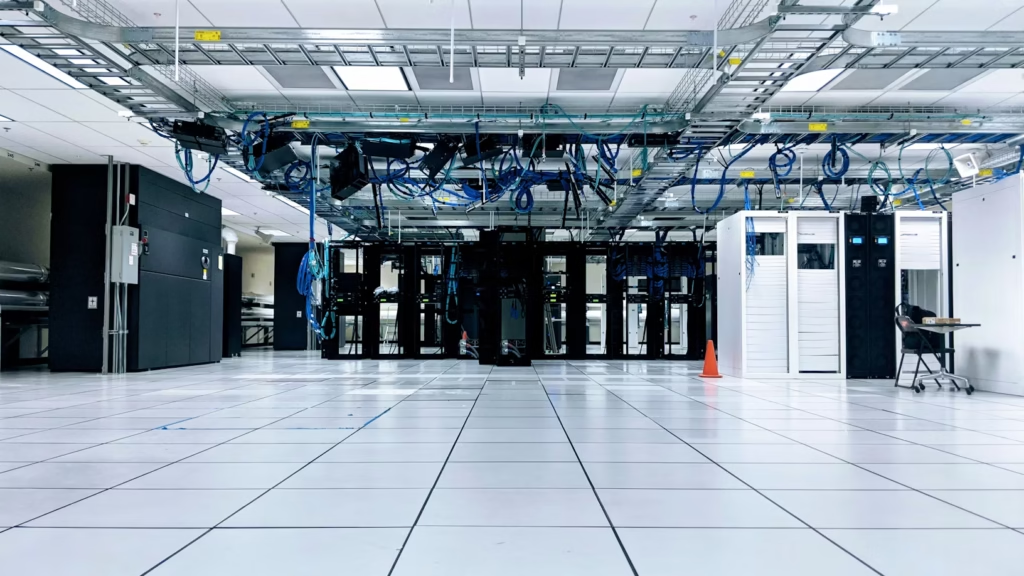
Rock-solid technical foundations, cloud setups, and integrations designed to scale smoothly as your business grows.
Synthesia Tutorial
How to Create an AI Avatar Video with Synthesia
Synthesia turns a script into a polished video with an AI presenter — no camera, studio, or editing software required. This tutorial covers the most common workflow: writing or importing a script, selecting an avatar and voice, and producing your first video, along with how to set up a custom avatar of yourself if you want the presenter to be you.
What this tutorial covers: creating a video from a script or existing document, choosing and configuring an avatar and voice, and the consent process required to build a personal avatar.
Prerequisites:
- A Synthesia account (a free trial is available, though custom avatars and longer videos require a paid plan)
- A script, or source material such as a slide deck, PDF, or webpage URL you want converted into video
- If creating a personal avatar: a webcam or smartphone, a quiet well-lit space, and 1–5 minutes to record
For platform comparisons and pricing, see our Synthesia vs. HeyGen comparison or our full Synthesia review.
Step 1: Start a New Video
From your dashboard, click Create Video. Synthesia gives you several starting points:
- Idea/prompt: describe the video you want and let Synthesia draft a script
- Script: paste or type your script directly
- File: upload a PDF, PowerPoint, or Word document — Synthesia will convert slide content and speaker notes into a script automatically
- URL: paste a webpage link and Synthesia will generate a script from the page content
For most business use cases — product walkthroughs, training videos, or explainer content — starting from a script you’ve written and reviewed gives you the most control over messaging.
Step 2: Choose a Template (Optional)
If you’re not starting from a file, you can select from Synthesia’s library of pre-built templates organized by use case (sales, training, how-to, internal communications, and more). Templates set up the slide structure and layout, which you can then edit scene-by-scene.
Step 3: Select an Avatar
Click Avatar in the left sidebar to choose from the stock avatar library. You can preview how each avatar looks and sounds before adding it to a scene. Once selected, click on the avatar in the preview to adjust its size and position, or hide it entirely if you only want voiceover with on-screen visuals.
If none of the stock avatars fit your brand, Synthesia offers three custom avatar types:
- Personal Avatar: built from a short webcam or smartphone recording — the fastest custom option
- Personal Avatar from photo: built from a single well-lit photo using speech-driven animation
- Studio Avatar: filmed under professional lighting and camera conditions for the highest-fidelity result
Step 4: Select a Voice
Choose a voice from Synthesia’s library — available in 120+ languages — and pair it with your chosen avatar. You can preview the voice reading your script before finalizing. If you’ve created a personal avatar with voice cloning enabled, your own cloned voice will be available as an option here.
Step 5: Edit Your Script and Scenes
Each scene in the editor corresponds to one segment of your video, with its own script text, avatar, background, and media. Edit the script directly in each scene — Synthesia will regenerate the avatar’s speech and lip-sync automatically when you change the text. You can also add micro gestures (head nods, raised eyebrows) to make the avatar’s delivery feel less static during longer scenes.
Step 6: Add Media and Branding
Use the Media panel to add images, video clips, charts, or your own branding elements (logos, color schemes) to each scene. This is also where you can adjust backgrounds — solid colors, stock environments, or your own uploaded images.
Step 7: Generate and Download
Once you’re satisfied with the preview, click Generate. Render time depends on video length and avatar type — longer videos with Studio Avatars take longer to process. When complete, download the video in your chosen resolution or share it via a Synthesia link.
How to Create a Personal Avatar (If Using Your Own Likeness)
- Find a well-lit space with a plain background and wear a simple, solid-colored top (the avatar’s outfit is fixed once created).
- Record a 1–5 minute video of yourself reading a script naturally, pausing between sentences. Practicing the script beforehand noticeably improves the result.
- Upload the footage to Synthesia.
- Record a live consent video — this step cannot be skipped or replaced with a pre-recorded clip, and confirms you’re granting permission for Synthesia to create your avatar.
- Wait for processing — personal avatars are typically ready within minutes after consent is completed.
Settings That Are Easy to Miss
- Consent video must be live: Synthesia requires this to be recorded in real time through their interface — uploading a pre-recorded “consent” clip will not work.
- Outfit and look are locked at creation: Whatever you’re wearing in your avatar recording becomes permanent for that avatar version — if you want different outfits, you’ll need to create separate avatar “looks.”
- Lip-synced translation vs. audio dubbing: Audio dubbing (translating the voiceover only) is available on all plans, but lip-synced video translation — where the avatar’s mouth movements match the new language — is reserved for paid and enterprise tiers.
- Avatar consent applies to real people only: Synthesia does not allow creating avatars of other individuals, public figures, or anyone without their direct, recorded consent — there’s no workaround for this on any plan.
- File-to-video conversion quality depends on source structure: PDFs and slide decks with clear, well-organized speaker notes convert far more cleanly than dense slides with little supporting text — it’s often worth lightly editing source files before uploading.
Related Reading
- See our Synthesia vs. HeyGen comparison for how the two platforms compare on avatars, pricing, and use cases
- Read our full Synthesia review for a detailed breakdown of plans and limitations
- Return to the AI Content & Media Production hub for more tools in this category
Disclaimer: Workflow Dynamics is a digital blueprint and resource hub. Some links on this website may be affiliate links, which can yield a commission for us at no additional cost to you. Affiliate Disclosure Page